
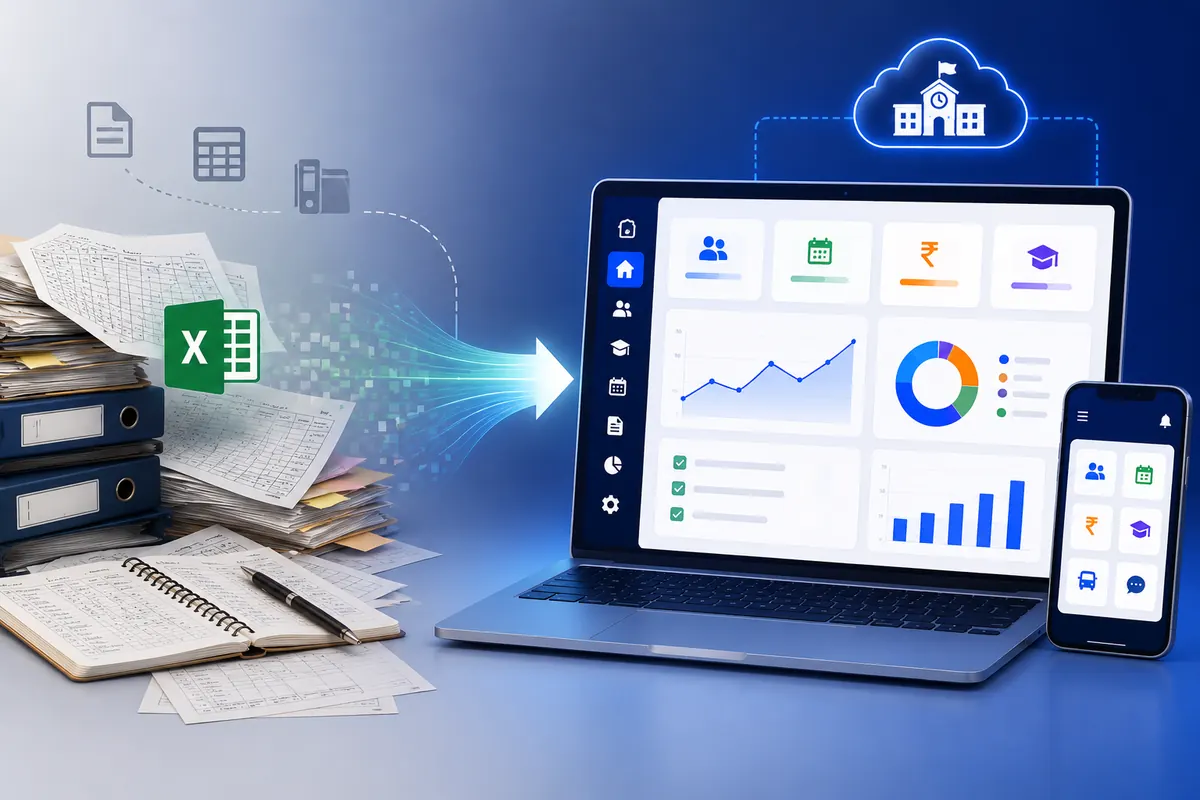
How to Migrate from Excel/Manual Records to a School ERP System (Step-by-Step)
Key Takeaways & Executive Summary
- Start with an Audit: Map every data source — student records, fee sheets, attendance registers — before touching any software.
- Clean Before You Migrate: Data hygiene (fixing name formats, duplicates, date mismatches) prevents post-go-live chaos.
- Run in Parallel: Operate the old and new systems side-by-side for 2–4 weeks to catch issues early, at a small scale.
- Train by Role: Teachers, office staff, and admins need different training — not one-size-fits-all sessions.
- Timeline: Small schools: 2–4 weeks. Mid-sized: 4–8 weeks. Large/multi-campus: 2–3 months.
Table of Contents
- Why Schools Put Off Migration
- Step 1: Audit Your Existing Data
- Step 2: Clean and Standardize Your Data
- Step 3: Choose an ERP Vendor That Supports Migration
- Step 4: Run a Parallel Testing Phase
- Step 5: Train Staff Before Full Rollout
- Step 6: Go Live — What to Expect in Month One
- How Long Does Migration Typically Take?
- How SchoolX Handles Data Migration
- Frequently Asked Questions (FAQs)
If you're reading this, there's a good chance your school office still runs on a mix of Excel sheets, printed registers, and a WhatsApp group that somehow holds the whole place together. That's not a criticism — it's just how most schools operate until the cracks start showing. A teacher accidentally overwrites last month's attendance sheet. Two people update the same fee register at the same time and one version wins. A parent calls asking why their child's report card has the wrong marks, and nobody can figure out which spreadsheet is the "final" one.
At some point, almost every growing school hits the same wall: spreadsheets stop scaling. And that's usually when "we should really get an ERP" turns from a someday-thought into an actual decision.
The good news is that migrating from manual records to a school ERP isn't as risky or chaotic as it sounds — as long as you go about it in the right order. This guide walks through exactly how to do that, step by step, based on how migrations typically go for schools switching from spreadsheets and paper registers to a proper digital system like SchoolX ERP.
A well-planned migration is actually one of the safer moments in a school's data history — because for once, everything gets properly audited, cleaned, and backed up, often for the first time in years.
Why Schools Put Off Migration Longer Than They Should
Before getting into the steps, it's worth naming the real reason so many schools delay this: fear of losing data. Nobody wants to be the person who "broke" ten years of student records during a software switch. That fear is understandable, but it also tends to keep schools stuck with a system that's already breaking in slower, quieter ways — missed fee follow-ups, attendance errors, teachers spending evenings copying homework updates into three different places.
The irony is that a well-planned migration is actually one of the safer moments in a school's data history, because for once, everything gets properly audited, cleaned, and backed up — often for the first time in years.
Step 1: Audit Your Existing Data Before You Touch Anything
Before you even start looking at ERP vendors seriously, sit down with whoever currently "owns" your data — usually the school office admin, accountant, and maybe a senior teacher — and map out what actually exists.
You're looking to answer:
- Where does student data live? Admission registers, Excel sheets, a mix of both across different years?
- How is attendance currently tracked? Paper registers per class, a shared spreadsheet, biometric device exports that nobody really reviews?
- Where does fee data sit? A single master Excel file, or separate sheets per class/section that someone manually consolidates?
- How far back do usable digital records go? Many schools only have clean digital data for the last 2–3 years; anything older may only exist on paper.
This step feels tedious, and honestly, it is. But skipping it is the single biggest reason ERP migrations go badly — schools jump straight to "let's start entering data into the new system" without first understanding what data they actually have, in what condition, and how much of it even needs to move over.
A practical tip: create one simple document that lists every data source you have, who maintains it, and roughly how many records it holds. This becomes your migration checklist for the next steps.
Step 2: Clean and Standardize Your Data Before Migration
Here's something most schools don't expect: migration isn't really a "technical" problem, it's a "data hygiene" problem. Your spreadsheets have probably accumulated years of small inconsistencies that never mattered much when a human was reading them, but will absolutely cause problems once a system starts processing them automatically.
Common issues to hunt down and fix:
- Inconsistent name formats — "Rahul Kumar" in one sheet, "Kumar, Rahul" in another, "RAHUL KUMAR" in a third
- Duplicate student entries — especially common when a student's record was re-created after a mid-year section transfer
- Missing or inconsistent date formats — DD/MM/YYYY in one file, MM/DD/YYYY in another, plain text dates in a third
- Fee records that don't reconcile — partial payments logged separately from the main fee sheet, discounts applied inconsistently
- Class/section naming mismatches — "Class 5A" vs "5-A" vs "V-A" across different years' records
If your school has years of accumulated data, consider tackling this in phases: fully clean and prioritize the current academic year first, then work backward through historical records as time allows. Your ERP vendor doesn't need ten years of perfectly clean data on day one — they need this year's data to be accurate.
Step 3: Choose an ERP Vendor That Actually Supports Migration
Not every school ERP vendor treats data migration the same way. Some will hand you a blank system and a manual and leave you to figure it out. Others — like SchoolX ERP — treat migration as a core part of the onboarding process, with dedicated support to get your data across cleanly.
When evaluating vendors specifically for migration support, ask:
- Will they provide an Excel import template that matches how your data is likely already structured?
- Can they bulk-import student, fee, and attendance records, or does someone need to manually type everything in?
- Do they offer any hands-on support during the migration — someone who actually helps map your fields to their system, rather than just sending documentation?
- What happens with historical data that doesn't fit neatly into the new structure? Is there a way to archive it for reference without forcing it into the live system?
This is genuinely one of the most important, and most overlooked, factors in choosing an ERP. A powerful feature list means very little if getting your existing data into the system becomes its own multi-month headache. SchoolX ERP provides ready-to-use Excel import templates and a dedicated onboarding team — so you're not starting from scratch.
Step 4: Run a Parallel Testing Phase — Don't Switch Everything Overnight
One of the biggest mistakes schools make is going live with a new ERP for everything, all at once, on a single Monday morning. It feels efficient, but it also means if something goes wrong — a fee calculation looks off, an attendance sync fails — you have no fallback, and the whole school notices at the same time.
A smarter approach is a parallel run: for a set period (commonly two to four weeks), keep your old system running alongside the new ERP. Some practical ways to structure this:
- Pick one class or section to fully test the new system first, while the rest of the school continues as normal
- Run attendance in both the old and new system side-by-side for a week or two, and compare the numbers before trusting the new system fully
- Have your office team cross-check fee records between both systems before communicating any balances to parents
This might feel slower than just "ripping the band-aid off," but it means any issues get caught in a controlled way, on a small scale, before they become a school-wide problem — or worse, a parent-facing one.
Step 5: Train Staff Before Full Rollout, Not During It
A school ERP is only as good as the people entering data into it every day. If teachers and office staff aren't comfortable with the new system before it fully replaces the old one, you'll end up with the worst version of both worlds — a partially-updated ERP and staff quietly still keeping their own spreadsheets "just in case." With SchoolX ERP, role-based training is built into the implementation plan, so staff go live with confidence, not confusion.
A few things that actually make training stick:
- Train by role, not all at once. Teachers need to know attendance, homework, and grading. Office staff need fees and admissions. Trying to train everyone on everything at once overwhelms people and wastes time.
- Use real data in training, not demo data. Practicing on your actual class list is far more useful than a generic demo dataset that doesn't reflect your school's structure.
- Designate one or two "power users" on staff — usually someone from the admin office — who get slightly deeper training and can act as the first point of contact when a teacher gets stuck, instead of everyone calling the vendor's support line for small questions.
Training is where a lot of ERP budgets quietly get shortchanged, because it doesn't feel like "real" implementation work. But a system that staff resist using — because they never got comfortable with it — ends up being expensive software that just sits there while everyone quietly goes back to Excel.
Step 6: Go Live — What to Actually Expect in the First Month
Even with good preparation, the first month after going fully live is rarely perfectly smooth, and it's worth setting expectations accordingly rather than treating any hiccup as a sign something went wrong.
What's normal in month one:
- A handful of data entry corrections as small errors from the migration surface
- Teachers occasionally needing reminders on how to complete a task they were trained on weeks earlier
- Parents needing a bit of hand-holding if they're now using a parent app for the first time
- The office team feeling slower than usual for the first couple of weeks as everyone adjusts
What's not normal, and worth escalating to your vendor immediately:
- Data that doesn't match what was in your original spreadsheets (a sign the migration itself had errors)
- Repeated system crashes or extremely slow performance during peak hours (like attendance marking time in the morning)
- Fee calculations that are consistently wrong, not just occasionally mistyped
By week four or so, most schools report that the new system starts to feel like "how things have always worked" — which is honestly the whole point. Schools that implement SchoolX ERP consistently report that within the first month, both teachers and parents are using the platform daily without needing reminders.
How Long Does Migration Typically Take?
This varies a lot based on school size and how clean your existing data already is, but as a rough guide:
- Small schools (under 500 students, mostly recent digital records): 2–4 weeks from data audit to full go-live
- Mid-sized schools (500–1500 students, multiple years of records): 4–8 weeks
- Larger institutions or multi-campus setups: 2–3 months, particularly if historical data needs significant cleanup
The biggest variable isn't the ERP software itself — it's almost always how much time is needed for Step 1 and Step 2 (auditing and cleaning your existing data). Schools that go in with reasonably organized spreadsheets migrate noticeably faster than schools trying to digitize years of paper registers from scratch.
How SchoolX Handles Data Migration for New Schools
At SchoolX, migration support is built into the onboarding process rather than left for schools to figure out on their own. Our team works directly with your admin office to map existing Excel sheets and registers into the system, run a supported parallel-testing phase, and train staff by role before full rollout — so your school isn't left reconciling two systems on your own.
Ready to Make the Switch?
If you're currently weighing whether to make the switch, our School ERP Software page walks through the full platform — covering all the modules from attendance and fee management to online admissions and administrative tools.
Or book a free demo to see exactly how the migration process would work for your school's specific setup. Our team handles the entire data transition — you focus on running your school.
Frequently Asked Questions (FAQs)
Not if the migration is planned properly. A thorough data audit and cleanup phase (Steps 1 and 2) is specifically designed to prevent this — the goal is to move everything usable into the new system and clearly archive anything that doesn't fit, rather than losing it.
Not immediately. Most schools start with clean digital data for the current academic year and gradually digitize older paper records over time, rather than delaying the entire migration until everything is digitized.
With a parallel testing phase and role-based staff training, most schools report minimal disruption. The biggest adjustment period is usually the first two to four weeks after full go-live, not the migration itself.
Both are possible, though many schools prefer starting at the beginning of a new academic year or term, since it naturally aligns with new admissions and a fresh attendance/fee cycle. That said, mid-year migration works fine if your data is reasonably organized — it just requires a bit more care in the transition period.