
School ERP Data Migration: How to Move Your Data From Old Software Safely
Key Takeaways & Executive Summary
- Raw Data Over Pretty Reports: Avoid formatted PDF statements. Insist on structured database or spreadsheet exports (CSV, Excel) with unique student IDs present across every single table.
- Field Mapping & Unique Keys: Create a field-by-field translation map with clear transformation rules before touching software. Use unique admission numbers as the single source of truth connecting students to fees, attendance, and exam marks.
- Clean in Working Copies: Standardise date formats, validate 10-digit mobile numbers, eliminate duplicate entries, and preserve UTF-8 encoding for regional language names before starting import routines.
- Dependency-Ordered Test Loading: Always run a trial migration in a staging environment. Import records in strict hierarchical sequence: academic framework → students → fee structures → transactions → attendance → marks.
- Hands-On Support: SchoolX backs school administrators with managed mapping, pre-import cleansing, parallel-run reconciliation, and on-site implementation support.
Table of Contents
- The Shape of a Migration
- 1. Extract: Get the Raw Data, Not Pretty Reports
- 2. Map: A Field-by-Field Plan
- 3. Clean: Fix It Before It Moves
- 4. Load: Test First, and Mind the Order
- 5. Validate
- The Cut-Over Problem: What Changes While You Migrate?
- Handle the Data Securely
- When Something Goes Wrong
- Should You Do It Yourself?
- How SchoolX Handles Migration
- Frequently Asked Questions (FAQs)
When people say "we'll migrate the data," it sounds like copying a folder. It isn't. Data migration is closer to translating a book: the content has to survive, but it has to be reshaped to fit a different language and structure, and the connections between pages (here, between a student and their fees, attendance and marks) have to stay intact.
Most of our other guides cover the decisions around migration: whether to switch, what to check beforehand, and what to verify afterwards. This one covers the middle: how the data actually moves, step by step, and where it tends to go wrong.
The Shape of a Migration
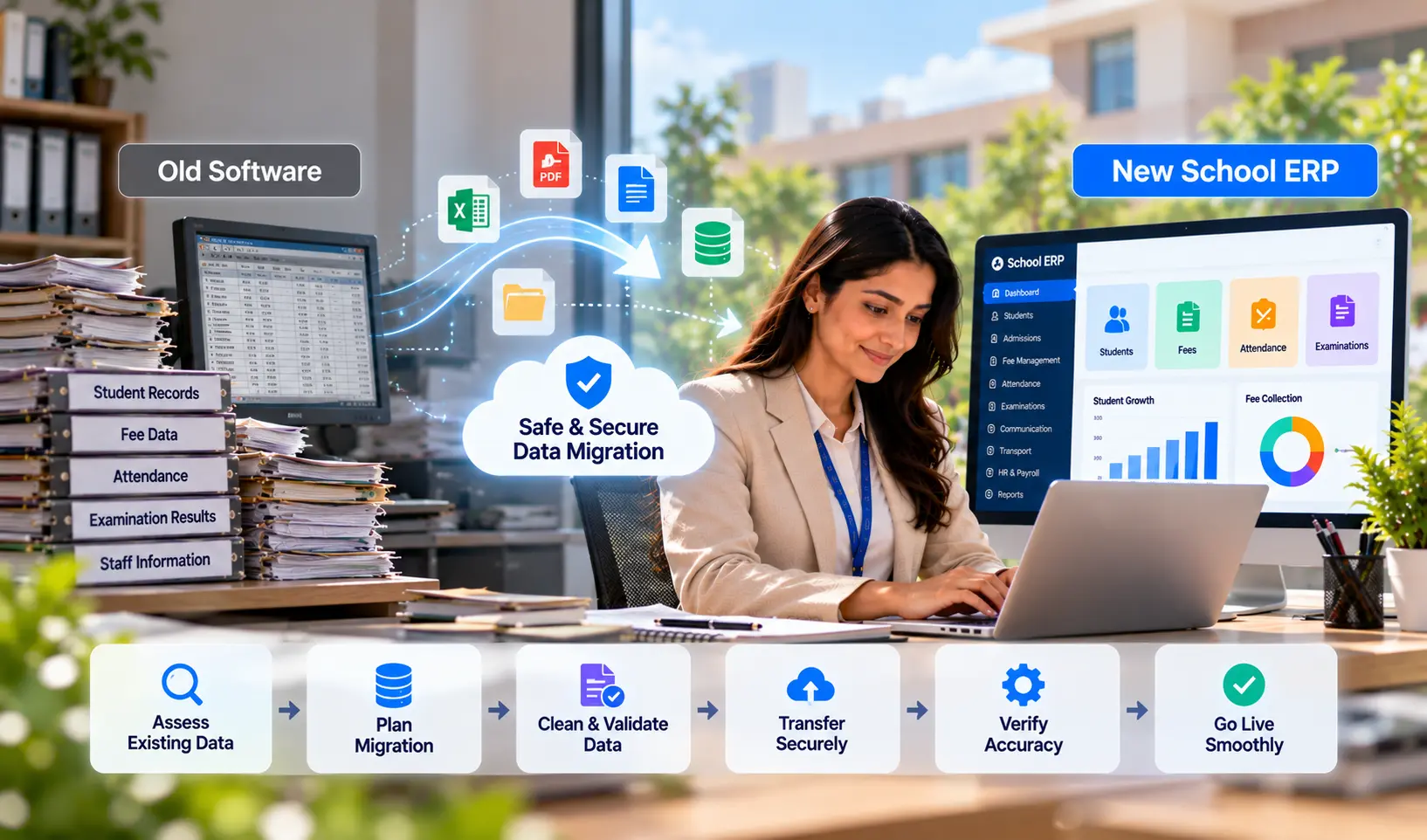
Technical people sometimes call it "extract, transform, load." For a school, think of five stages:
- Extract: get the data out of the old system
- Map: decide where each piece goes in the new one
- Clean: fix what's wrong before it moves
- Load: import it, test first, then for real
- Validate: prove it arrived correctly
1. Extract: Get the Raw Data, Not Pretty Reports
The most common early mistake is exporting what's easy rather than what's useful. A fee report exported as a PDF looks complete, but you can't import a PDF. What you want is the underlying table: one row per student, one row per transaction, with every field.
Ask your current vendor or whoever maintains the old system for:
- Full exports in a structured format: such as Excel or CSV, or a database export if that's what's available
- Student IDs or admission numbers in every export: since they're what ties records together
- Complete history: for the years you decided to carry over
- Photos and scanned documents as a separate batch: with a way to tell which file belongs to which student
If the old software can only produce formatted reports, tell the new vendor early. It changes the effort significantly.
2. Map: A Field-by-Field Plan
Mapping is writing down where each old field lands. A simple sheet does the job:
| Old field | New field | Rule |
|---|---|---|
| Adm No | Admission number | Keep exactly as is; must be unique |
| Name | First name, Last name | Split on the last space; review exceptions |
| DOB | Date of birth | Convert to a single date format |
| Class | Class | "5-A" and "V-A" both become "5" with section "A" |
| Father mobile | Guardian phone | Remove spaces and country code, keep 10 digits |
| Fee paid | Fee transaction | One row per payment, keep receipt number |
| Attendance "P/A/L" | Present/Absent/Leave | Translate codes |
The "rule" column is where problems get caught on paper instead of after the import.
The most important decision in mapping is the key: which field will connect a student to their fees, attendance and marks. Usually it's the admission number. Pick it deliberately and make sure it's unique and identical in every file, because if it isn't, the connections break and you won't always notice at once.
3. Clean: Fix It Before It Moves
Importing bad data just gives you bad data in a nicer system. Things worth cleaning first:
- Dates: one format, and no impossible values
- Phone numbers: one pattern, with no stray spaces, and none missing, because messages and alerts depend on them
- Names: consistent spelling and capitalisation, no trailing spaces
- Classes and sections: uniform naming
- Duplicates: especially re-admitted students and anyone moved between sections
- Blank mandatory fields: decide what to do about them before the import rejects them
- Special characters and regional-language names: check that the file encoding preserves them, so names in Hindi or other scripts don't turn into question marks
Doing this in a spreadsheet copy, not in the original, means you always have an untouched version to go back to.
4. Load: Test First, and Mind the Order
Use a test environment. A trial import into a copy of the new system lets you find problems without consequences. Expect the first test to turn up issues. That's the point.
Import in dependency order. Later data refers to earlier data, so it has to arrive in sequence:
- Academic year, classes, sections and subjects
- Students and guardians
- Fee heads and structures
- Opening balances and fee transactions
- Attendance
- Exam structure and marks
- Documents and photos
Importing fees before students exist, for example, produces errors because there's no one to attach them to.
Start small. Import one class first, check it, then the rest.
Keep the logs. Good imports produce a list of what succeeded and what was rejected, and why. Read the rejects carefully. Each one is either a data problem to fix or a mapping problem to correct.
5. Validate
Once data is in, compare it with the source: counts by class, total fees collected and outstanding, a sample of individual ledgers and attendance percentages, and real documents such as report cards. Our data migration checklist lists exactly what to compare for each type of data.
If a total doesn't match, find out why before moving on. Mismatches usually point to a mapping or cleaning issue, and the cause tends to affect more records than the one you spotted.
The Cut-Over Problem: What Changes While You Migrate?
Migration takes time, and school life doesn't pause. Fees are paid, students are admitted, attendance is marked, in the old system, while you're moving it. There are two common ways to handle this:
- A freeze: agree a short period with no changes in the old system before the final import. Works well for small windows, such as a weekend.
- A catch-up import: do the main import earlier, then import only what changed since (new payments, new students) just before go-live.
Whichever you choose, decide it ahead of time and tell the people who enter data. Otherwise, entries made in the old system after the export quietly never arrive.
Handle the Data Securely
School data is mostly information about children and their families. During migration it gets copied, emailed and opened on more computers than usual, which is when it leaks.
- Share files through secure channels the vendor and school have agreed on, not through personal messaging apps or casual email attachments
- Limit who holds copies, and keep a list
- Don't leave working copies on personal laptops or shared drives
- Once migration is verified, delete working copies you no longer need, and archive the original export securely
- Check which data protection obligations apply to your school, since you're responsible for student data even when a vendor handles it
When Something Goes Wrong
It might. Imports can fail partway, totals might not match, or a mapping might prove wrong. The protection against this is simple: don't touch or switch off the old system until the new one is verified, and keep your untouched exports. With those two things, a problem is a delay, not a disaster.
Should You Do It Yourself?
For a very small school with tidy spreadsheets, a careful DIY import is possible. Once you have multiple years of history, fee transactions, several classes and a previous ERP's data structure, vendor-led migration tends to be worth it. They know their own import rules, and they've seen the typical problems.
How SchoolX Handles Migration
When schools move to SchoolX, our team helps with mapping, cleaning, import and verification, and works alongside your staff through a parallel period. Our implementation team visits your campus for setup and training, so you aren't left to manage it alone. You can read more on the implementation support page, or book a free demo to talk through your own data. If you're moving from spreadsheets instead of another system, see migrating from Excel.
Frequently Asked Questions (FAQs)
It's the process of moving your school's records (students, fees, attendance, exams and more) from old software or spreadsheets into a new ERP, reshaping them to fit the new structure while keeping the connections between them.
Structured formats such as Excel or CSV, or a database export, with unique student IDs in every file. Formatted reports such as PDFs usually can't be imported.
It depends on how much history you're moving and how clean it is. Cleanup and testing usually take longer than the import itself.
Broken links between records, often caused by IDs that aren't unique or consistent, and moving dirty data without cleaning it. Testing on a copy and reconciling totals catches most problems.
Yes. Many schools migrate student records first, then fees, attendance and exams, verifying each stage before continuing, or pilot with one class.