
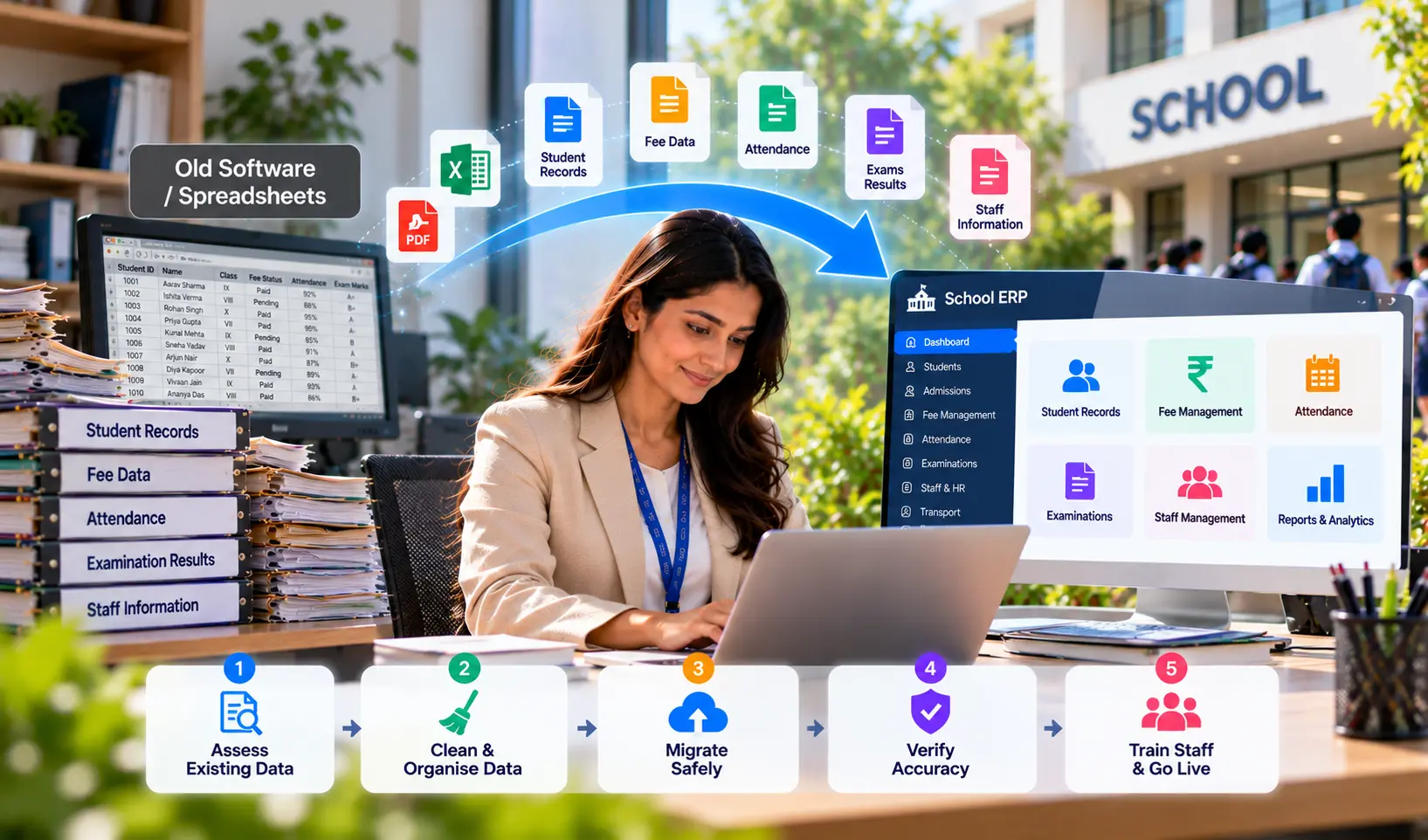
School ERP Migration Checklist: Data, Fees, Attendance, Exams & Student Records
Key Takeaways & Executive Summary
- Structured Preparation: Before migrating, audit every data category—student profiles, fee transactions, attendance, exam results, and staff records—and create verified backups.
- Clean Before You Move: Remove duplicates, standardise date formats and class names, and verify parent contact details before transferring anything into the new ERP.
- Migrate by Category: Transfer records in logical order—student profiles first, then fees, attendance, exams, and operational data—verifying each category separately.
- Verify Before Going Live: Compare old and new records, test real workflows (fee lookups, attendance marking, report card generation), and get departmental sign-off.
- Train and Communicate: Arrange role-specific staff training and inform parents about any changes to access or login credentials before the launch.
Table of Contents
- Why Do Schools Need an ERP Migration Checklist?
- Phase 1: Prepare for School ERP Migration
- Phase 2: Clean and Organise School Data
- Phase 3: Migrate Important School Records
- Phase 4: Verify the Migrated Data
- Phase 5: Prepare Staff and Launch the New ERP
- Complete School ERP Migration Checklist
- How SchoolX ERP Supports a Smoother Transition
- Frequently Asked Questions (FAQs)
Switching to a new School ERP system involves more than installing software and creating user accounts. Schools have years of important information stored in their existing systems, spreadsheets, and paper records.
Student profiles, admission details, fee transactions, attendance histories, examination results, and staff information must be transferred carefully. Missing or incorrectly transferred records can create confusion for administrators, teachers, parents, and students.
This is why schools need a structured school ERP migration checklist before moving to a new platform.
A well-planned migration helps schools organise their existing data, reduce errors, verify important records, and prepare staff for the new system.
In this guide, we cover the essential steps involved in school data migration and explain what schools should check before, during, and after switching ERP software.
Why Do Schools Need an ERP Migration Checklist?
Many schools consider changing their existing ERP because of limited features, poor support, outdated technology, or difficulties managing daily operations.
However, migrating without proper planning can create problems such as:
- Missing student admission and profile information.
- Incorrect fee balances or incomplete payment histories.
- Inconsistent attendance records.
- Missing examination results and report cards.
- Duplicate student or staff entries.
- Incorrect parent contact information.
- Difficulty accessing historical school records.
A proper ERP migration checklist helps school management identify these issues before they affect daily operations.
Phase 1: Prepare for School ERP Migration
Before transferring information, the school should understand what data it currently maintains and what needs to be moved.
1. Review the Existing ERP System
Start by reviewing the current software, spreadsheets, and other record-keeping methods. Identify:
- Which modules are currently being used.
- Where student and staff information is stored.
- Which records are maintained manually.
- What information needs to be retained.
- Which features are missing from the existing system.
This assessment helps determine the scope of the migration.
2. Identify the Data That Needs to Be Migrated
Prepare an inventory of all important school records. Common data categories include:
- Student profiles and admission records.
- Parent and guardian information.
- Fee structures and payment histories.
- Attendance records.
- Examination results and report cards.
- Homework and academic records.
- Teacher and staff information.
- Transport assignments.
- Library and inventory records.
- Communication and administrative records.
Not every school will need to migrate every category. The list should reflect the school's actual requirements.
3. Take a Complete Data Backup
Before making changes to the existing system, create a backup of important records. Keep copies of relevant databases, spreadsheets, documents, and exported reports.
A good backup process should include:
- Exporting available records in usable formats.
- Keeping a separate copy of the original data.
- Restricting access to authorised personnel.
- Verifying that backup files can actually be opened.
- Maintaining a secure copy until migration is completed and validated.
Never depend on a single backup file.
Phase 2: Clean and Organise School Data
Moving incorrect data into a new ERP does not solve existing record-keeping problems. Schools should review their information before migration.
4. Remove Duplicate Student Records
Duplicate entries can occur when students are registered multiple times or information is entered through different systems. Check:
- Student admission numbers.
- Names and dates of birth.
- Class and section details.
- Parent contact information.
- Existing student identifiers.
Resolve duplicates carefully rather than deleting records without verification.
5. Verify Parent and Guardian Information
Check whether parent and guardian details are complete and current. Important fields include:
- Parent or guardian names.
- Mobile numbers.
- Email addresses.
- Residential addresses.
- Emergency contact details.
- Relationship with the student.
Accurate information is particularly important for attendance notifications, announcements, and school communication.
6. Standardise Existing Records
Different spreadsheets may use different formats for dates, names, class labels, and contact numbers. Standardise these fields before transferring the information.
For example, ensure that dates follow a consistent format and class and section names use the same naming conventions. This reduces the possibility of incorrect entries during student data migration.
Phase 3: Migrate Important School Records
This is the most important stage of the process. Each category should be transferred and checked separately.
7. Student Profiles and Admission Records
Student information forms the foundation of a school ERP. Verify that the following information is transferred correctly:
- Student name and admission number.
- Date of birth and gender, where maintained.
- Class and section.
- Admission date and academic session.
- Parent and guardian details.
- Address and contact information.
- Previous academic records, where required.
Pay particular attention to admission numbers because they help identify individual student records across different modules.
8. Fee Structures and Payment Histories
Fee migration requires careful verification because incorrect financial records can create disputes with parents. Check the transfer of:
- Class-wise fee structures.
- Fee categories and instalments.
- Previous payment transactions.
- Outstanding balances.
- Pending dues and concessions.
- Receipts and transaction references.
- Previous academic session fee records.
After migration, compare the opening balances in the new ERP with the existing fee records. Do not assume that matching total collections means every individual student account is correct.
9. Attendance Records
Attendance data is important for academic monitoring and administrative reporting. Verify:
- Daily attendance records.
- Class-wise attendance.
- Student absence history.
- Leave records.
- Attendance summaries.
- Historical attendance reports.
Schools should also confirm whether the new system supports their attendance workflow, including manual marking, biometric devices or RFID, or other integrations where applicable.
10. Examination Results and Report Cards
Historical academic records should remain accessible after migration. Check:
- Examination schedules.
- Subject-wise marks.
- Grades and assessment results.
- Student performance records.
- Previous report cards.
- Academic session details.
- Class-wise examination reports.
Compare sample student records from the old system with the new ERP to ensure marks, grades, and report cards are displayed correctly.
11. Teacher and Staff Records
Staff information should also be reviewed before migration. Important details include:
- Employee identification numbers.
- Names and contact information.
- Department and designation.
- Assigned subjects and classes.
- Employment details.
- Payroll-related information, if applicable.
Schools using HR and payroll modules should separately verify salary structures, deductions, and historical payroll records.
12. Transport and Other Operational Records
If the school uses transport management, check whether the following information needs to be transferred:
- Vehicle details.
- Route and stop information.
- Student transport assignments.
- Driver and attendant records.
- Transport fee information.
Similarly, review library, inventory, and other operational records based on the modules used by the school.
Phase 4: Verify the Migrated Data
Completing a data transfer does not automatically mean the migration was successful. Every important category should be checked before the new system becomes the primary source of school information.
13. Compare Old and New Records
Select representative records from the existing system and compare them with the new ERP. Check:
- Total student records.
- Class-wise student counts.
- Fee balances and payment histories.
- Attendance summaries.
- Examination marks and grades.
- Staff records.
Investigate differences rather than assuming they are harmless.
14. Test Important Workflows
Ask administrators and teachers to test the processes they use regularly. For example:
- Can administrators find student profiles?
- Can the accounts team access fee histories?
- Can teachers mark attendance?
- Can examination staff generate report cards?
- Can parents access the information available to them?
- Are notifications and communication features working?
This helps identify practical problems that may not appear during a simple data comparison.
15. Obtain Approval Before Going Live
Once the records and workflows have been verified, the responsible school representatives should review the migration results. Keep a record of:
- Completed data categories.
- Unresolved discrepancies.
- Corrective actions.
- Verification results.
- Approval from the relevant departments.
This creates accountability and reduces confusion during the transition.
Phase 5: Prepare Staff and Launch the New ERP
A successful migration also depends on how comfortably staff can use the new platform.
16. Train Teachers and Administrators
Arrange training according to user responsibilities. For example:
- Administrators should understand student management, admissions, and reporting.
- Accounts staff should learn fee collection and transaction management.
- Teachers should understand attendance, homework, and academic records.
- Examination staff should learn assessment and report card workflows.
Practical demonstrations are generally more useful than explaining every feature at once.
17. Inform Parents and Students
If the new ERP includes parent and student access through a mobile app, communicate the transition in advance. Explain:
- How to access the new platform.
- Whether existing login credentials will change.
- How to update contact information.
- Where to find attendance, fees, announcements, and academic information.
- Whom to contact for technical assistance.
18. Monitor the System After Launch
The first few weeks after migration are important. Monitor user feedback, incorrect records, login problems, notification delivery, and any operational issues.
Keep the previous system's backup and relevant exports available according to the school's retention and data-access requirements until the new system has been fully validated.
Complete School ERP Migration Checklist
Use this checklist to review your school's readiness before switching ERP systems.
Before Migration
- Review the existing ERP and record-keeping methods.
- Identify all data categories to be transferred.
- Assign migration responsibilities.
- Create and verify complete backups.
- Review data security and access permissions.
Data Preparation
- Remove or resolve duplicate student entries.
- Verify parent and guardian details.
- Standardise dates, names, and class information.
- Review incomplete or outdated records.
During Migration
- Transfer student and admission records.
- Transfer fee structures and payment histories.
- Transfer attendance records.
- Transfer examination results and report cards.
- Transfer teacher and staff information.
- Transfer transport and other operational records where required.
After Migration
- Compare old and new records.
- Verify fee balances and student accounts.
- Check attendance and examination reports.
- Test important user workflows.
- Obtain approval from responsible staff.
- Train teachers and administrators.
- Inform parents and students.
- Monitor the new ERP after launch.
How SchoolX ERP Supports a Smoother Transition
Moving to a new school ERP requires coordination between school management, administrative staff, and the implementation team.
SchoolX ERP provides a connected platform for managing important academic and administrative activities, including student records, admissions, fee management, attendance, examinations, communication, and transport.
During implementation, schools should review their existing records, identify the information that needs to be transferred, and plan the transition according to their operational requirements. The implementation process should also include appropriate configuration, data verification, and staff onboarding so that the school can begin using the new system with greater confidence.
If your school is planning to replace its existing software, contact the SchoolX team to discuss your requirements. You can also explore our School ERP Implementation Support page to understand the implementation process, or read our technical guide on how data actually moves during migration.
Final Takeaway: A successful school ERP migration is not simply about moving information from one platform to another. It requires preparation, accurate data transfer, proper verification, and staff training. Following a structured migration checklist helps schools protect important records and make the transition to a new ERP more organised.
Frequently Asked Questions (FAQs)
A school ERP migration checklist is a structured list of activities that helps schools prepare, transfer, verify, and organise their information when moving from an existing ERP to a new system.
Common records include student profiles, admissions, parent details, fee histories, attendance, examination results, report cards, staff information, and transport records. The exact scope depends on the school's requirements.
Schools should create verified backups, maintain copies of original records, use secure transfer procedures, validate migrated information, and retain relevant exports until the migration has been properly checked.
Yes, when those records are required for financial reconciliation, academic reporting, or administrative reference. Schools should decide the historical period to retain before migration begins.
The duration depends on the amount and quality of existing data, the number of modules involved, the complexity of the old system, and the implementation requirements. A migration timeline should be agreed upon after reviewing the school's records.
Yes, many ERP platforms support importing information from structured spreadsheets. However, the data may need cleaning, standardisation, and validation before it can be imported correctly. See our guide on migrating from Excel to a school ERP.